Troubleshooting Guide
Symptom-by-symptom fixes for thermal label printers and other vendor-driver printers on macOS, especially Apple Silicon Macs (M1, M2, M3, M4).
Start with the README. On Apple Silicon, the large majority of these symptoms share one root cause: the printer’s CUPS filter is an Intel-only binary and Rosetta 2 isn’t installed.
Fastest triage — read-only, works for any brand:
bash scripts/diagnose_freex_macos.sh --all
Contents
- “The printer software is not compatible with this device”
- “Filter failed”
- “Bad CPU type in executable”
- The vendor’s app works but macOS printing doesn’t
- I reinstalled the driver several times and nothing changed
- The printer is reachable on the network but nothing prints
- My Wi-Fi queue stopped working
- The printer got an address on a completely different network
- The queue I made before installing Rosetta still errors
- Labels print at the wrong size or on a huge blank page
- Labels print at a different size or with different borders every time
- Nothing prints and there’s no error at all
- The printer pauses itself after every job
- Printing broke after a macOS upgrade
- Starting over cleanly
“The printer software is not compatible with this device”
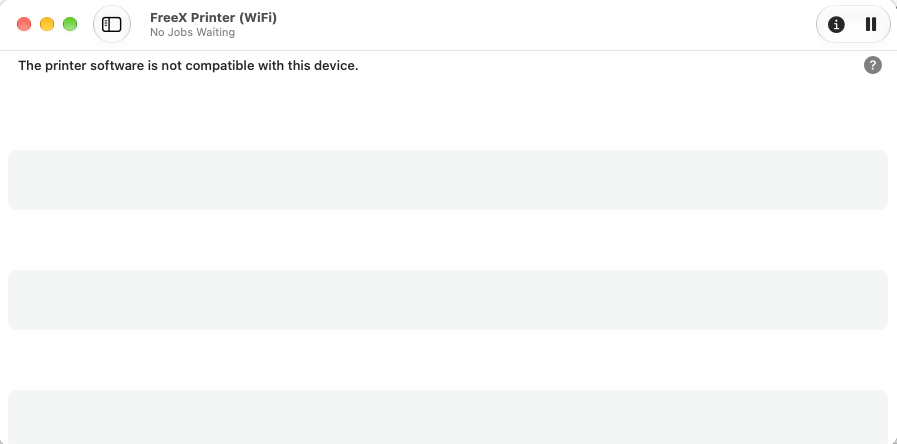
What macOS means: CUPS could not run the vendor’s filter program for this printer.
What “this device” means: your Mac, not your printer. The wording is misleading — it sounds like you installed the wrong driver for your printer model.
Usual cause: the filter is Intel (x86_64) and you’re on Apple Silicon without Rosetta 2.
uname -m                                                            # arm64 = Apple Silicon
file /usr/libexec/cups/filter/* | grep -i x86_64 | grep -vi arm64   # any hit = Intel-only
Fix:
softwareupdate --install-rosetta
Then remove and re-add the printer.
What it is not: a corrupted download, a macOS incompatibility, a bad USB cable, or a faulty printer.
“Filter failed”
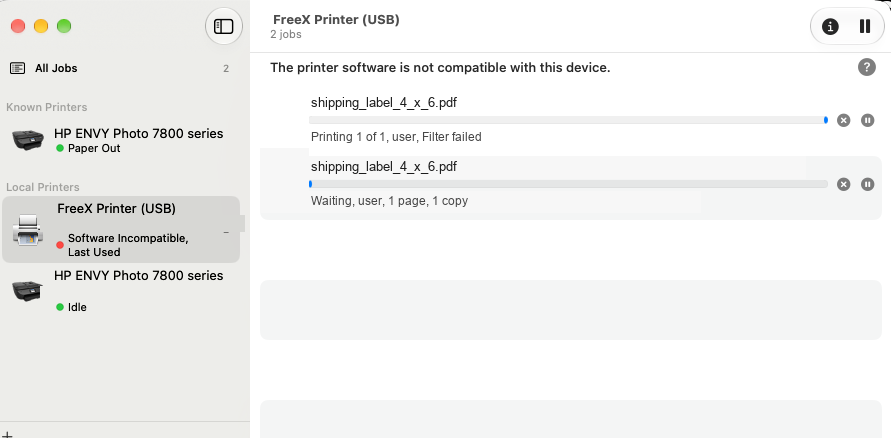
Shown in the print queue window. Same root cause — the job reached the filter stage and the filter couldn’t be executed. The queue usually pauses itself afterwards.
Fix: install Rosetta 2, then:
- Open the queue: System Settings → Printers & Scanners → the printer → Printer Queue…
- Delete stuck jobs
- Resume the printer if it’s paused
- If it fails again, remove the printer entirely and add it back
If “Filter failed” persists after Rosetta is installed, the queue is probably using the wrong driver:
lpstat -p                                             # your queue names
lpoptions -p YOUR_QUEUE_NAME | tr ' ' '\n' | grep -i printer-make
It must name your real printer driver — not Generic PostScript Printer or Generic PCL Printer. Thermal label printers understand neither. If it’s generic, remove the queue and re-add it with Use → Select Software… → your printer’s driver.
Other causes of “Filter failed” worth checking once Rosetta is confirmed:
- The filter file lost its executable bit (
ls -lshould show-rwxr-xr-x) - A partial driver install — reinstall the vendor package
- A PPD referencing a filter that isn’t installed at all (see other-printers.md)
“Bad CPU type in executable”
The real, kernel-level error. It appears only in the CUPS log:
sudo cupsctl --debug-logging
# reproduce the failed print
sudo tail -n 100 /var/log/cups/error_log
sudo cupsctl --no-debug-logging
execv of /usr/libexec/cups/filter/rastertoFreeX failed. err:86, Bad CPU type in executable
STATE: +com.apple.badarch-error
PID 12345 (/usr/libexec/cups/filter/rastertoFreeX) stopped with status 186 (Bad CPU type in executable)
This is unambiguous: an Intel binary, an Apple Silicon Mac, no translation layer.
err:86is macOS’sEBADARCH— “bad CPU type in executable”com.apple.badarch-erroris the system state flag for architecture mismatch. Seeing it in any log means wrong CPU architecture, never corrupt file- status 186 is what CUPS records for the failed filter
Fix: softwareupdate --install-rosetta
Verify:
arch -x86_64 /usr/libexec/cups/filter/rastertoFreeX
Success is the filter’s own usage message, e.g.
ERROR: rastertoepson job-id user title copies options [file] — it means the binary launched.
Failure is Bad CPU type in executable again.
The vendor’s app works but macOS printing doesn’t
The most confusing part of this whole problem, and completely expected.
The manufacturer’s utility (FreeX WiFi Toolbox, or any vendor equivalent) talks to the printer directly over USB or the network. It never goes through CUPS and never runs the CUPS filter. So it connects, tests, and configures perfectly while every normal print job fails.
A successful connection test does not mean printing will work. It only proves the printer, the cable, and the network are fine — genuinely useful, because it rules out hardware.
I reinstalled the driver several times and nothing changed
Expected. Reinstalling puts back the same Intel binary. The file was never damaged — your Mac simply can’t execute that CPU architecture without Rosetta 2.
Install Rosetta once and the driver you already have starts working. No reinstall needed.
The printer is reachable on the network but nothing prints
If this succeeds:
nc -vz 192.168.1.100 9100
Connection to 192.168.1.100 port 9100 [tcp/hp-pdl-datastr] succeeded!
…then the network, the IP, and port 9100 are all fine. The failure happens before any data reaches the network — in the filter stage on your Mac.
Go back to the Rosetta check. A network test cannot diagnose a filter problem.
My Wi-Fi queue stopped working
There are two distinct causes, and they need different fixes. Check which one you have first:
# what address does the queue expect?
lpstat -v | grep -i freex
# restart the printer, read the IP from the label it prints, and compare
If the printer’s new address is on the same subnet (both 192.168.1.x, say) — the DHCP lease
expired and it got a different address. That is the common case, covered below.
If the printer’s address is on a different subnet (your Mac on 192.168.1.x, the printer on
192.168.3.x) — something other than your router is handing out addresses, usually macOS Internet
Sharing. A router reservation cannot fix that one. See
the printer got an address on a completely different network.
For the common case: the printer’s DHCP lease expired and it got a new IP, while the macOS queue still points at the old one.
- Restart the printer — most print a configuration label showing the current IP
- Compare it to the address in System Settings → Printers & Scanners → your printer
- If they differ, remove the queue and add it again with the new IP
Permanent fix: set a DHCP reservation on your router, bound to the printer’s MAC address. Leave DHCP enabled on the printer and let the router pin the address — more reliable and easier to undo than a static IP set on the printer. Step-by-step, including eero and the IPv6 trap: Stop the IP address from changing.
Also check:
- The printer dropped off Wi-Fi — look for the Wi-Fi/link LED, or power-cycle it
- The router moved it to a different band or a guest network. Most of these printers are 2.4 GHz only
- You changed your Wi-Fi name or password — reconfigure via the vendor Toolbox over USB
The printer got an address on a completely different network
You restart the printer, it prints its config label, and the IP is on a subnet
that isn’t yours — your Mac is on 192.168.1.x but the label says
192.168.3.42. Printing fails with “The printer may not exist or is
unavailable at this time”.
This is not a DHCP lease change. Something other than your router handed the printer an address.
The usual culprit: macOS Internet Sharing
If System Settings → General → Sharing → Internet Sharing is switched on,
your Mac runs its own DHCP server (bootpd) and hands out addresses on its own
private subnet — typically 192.168.2.x or 192.168.3.x — over whatever
interfaces it is sharing to.
If any of those interfaces reaches the rest of your network — a dock’s Ethernet port into a switch, especially with a mesh node or access point plugged into that switch — then devices joining your normal Wi-Fi can end up leased an address by your Mac instead of your router.
The printer then sits on a network your router knows nothing about. Crucially, a DHCP reservation cannot fix this, because your router never assigned the address in the first place.
How to confirm it
# Is the Mac running a DHCP server and sharing?
pgrep -l InternetSharing bootpd

# Bridge interfaces created by Internet Sharing, and their subnets
ifconfig | grep -A3 '^bridge' | grep -E '^bridge|inet '

# Which devices has the Mac leased addresses to?
cat /var/db/dhcpd_leases
If the printer’s address appears in dhcpd_leases, your Mac gave it that
address. A wired interface showing a self-assigned 169.254.x.x is another
strong hint — that happens when the Mac is acting as the DHCP server on a
segment rather than a client of it.
The fix
- Check what depends on it first.
cat /var/db/dhcpd_leaseslists every device your Mac is serving. Turning sharing off will move them all back to your router, which is correct, but some IoT devices need a power-cycle to notice. - Turn Internet Sharing off.
- Wait a couple of minutes, then confirm any wired interface picks up a normal
address from your router instead of
169.254.x.x. - Restart the printer. Its config label should now show an address on your real network.
- Only then create the DHCP reservation on your router.
- Point the queue at the new address:
sudo lpadmin -p <QUEUE> -v socket://NEW_IP
If you genuinely need Internet Sharing
Don’t share to an interface that reaches the rest of your network. Sharing to a port with a single isolated device on it is fine; sharing to a port that leads to a switch carrying your normal network puts a second DHCP server on that network, and which one answers a given device is a race.
The queue I made before installing Rosetta still errors
A queue created while the filter was unusable can stay in a bad state — paused, holding dead jobs, or with a cached driver selection.
Fix: remove that printer completely and add it again:
- System Settings → Printers & Scanners
- Select the printer → Remove Printer…
- Add Printer, Scanner, or Fax… → select your printer
- Use → Select Software… → your printer’s driver
- Add
Labels print at the wrong size or on a huge blank page
Most 4x6 thermal drivers default to the correct size — macOS apps just ignore it and open the print dialog on US Letter.
lpoptions -p YOUR_QUEUE_NAME -l | grep -i PageSize
The * marks the driver default:
PageSize/Media Size: Custom.WIDTHxHEIGHT w283h283 w283h340 *w283h425 ...
For FreeX, w283h425 = 283 × 425 points = 100 × 150 mm = 4x6.
Fix: in the print dialog set Paper Size to the 4x6 / 100×150 mm entry and Scale to 100% / Actual
Size, then Presets → Save Current Settings as Preset… and name it Label 4x6. Limit it to that
printer if macOS offers the option, and select it every time you print labels.
Also check:
- The label file is genuinely 4x6 — a Letter-size PDF with a small label in the corner prints exactly that way
- Scale to Fit is off
- The physical roll matches the selected size, and the gap sensor is calibrated (the feed or calibration button on the printer)
Labels print at a different size or with different borders every time
Same file, same printer, but each print comes out shifted, scaled, or with margins that move. This is not the driver — it is macOS scaling your page to the paper, and recalculating that scale per document.
The cause
Two settings conspire:
1. “Scale to Fit” is on. In the print dialog, Scale to Fit asks macOS to resize the page to the paper. It recomputes a percentage for every document, so one label prints at 100% and the next at 165%. Preview’s saved settings show it plainly:
com.apple.print.PageToPaperMappingAllowScalingUp = 1
2. The queue’s paper size and the app’s paper size disagree. The driver
offers two 4x6-ish sizes — w283h425 (100 x 150 mm) and w288h432 (4.00 x 6.00
in). If the queue defaults to one and the print dialog uses the other, macOS
inserts a scaling step to reconcile them, and the borders move.
The fix
Make the sizes agree, then turn scaling off.
Set the queue to the same size the app uses — for US shipping labels that is
w288h432:
lpoptions -p <QUEUE> -o PageSize=w288h432
Then in the print dialog:
- Paper Size ->
4.00x6.00" - Click the Scale: radio button — not Scale to Fit
- Enter 100
- Presets -> Save Current Settings as Preset…, name it
FreeX 4x6, and choose Only this printer
USPS, UPS and Amazon labels are already exactly 4 x 6 inches. Paper at 4x6 plus scale at 100% means no scaling happens at all — byte-identical output every time.
Delete old presets
A preset saved earlier carries the old scale-up setting with it, so picking it
brings the problem back. Presets -> Edit Preset List and delete any leftovers
(Job Preset, Job Preset 2, and similar auto-generated names).
The setting that silently undoes your preset
In Presets -> Edit Preset List there is a checkbox at the bottom:
Reset Presets Menu to “Default Settings” After Printing
Uncheck it.
When it is ticked, macOS discards your preset selection after every print and
reverts the menu to “Default Settings”. You select FreeX 4x6, print one perfect
label, and the next job quietly falls back to Scale to Fit and whatever else the
defaults carry.
This is the single best explanation for “it worked once and then went back to printing wrong”, and it is easy to miss because the preset itself is still saved — it just is not selected any more.
With it unchecked, macOS remembers the last preset you used, per printer.
There is a second scaling control
macOS has two independent “scale to fit” settings, in different sections of the same dialog, and both must be right:
| Section | Setting | Should be |
|---|---|---|
| Preview | Scale / Scale to Fit | Scale: 100% |
| Paper Handling | Scale to Fit Paper Size | off |
If Paper Handling -> Scale to Fit Paper Size is switched on, it resizes your
page to whatever Destination Paper Size says underneath it — which is often a
leftover value like 100mmx150mm while the top of the dialog says 4.00x6.00".
The page then gets scaled even though Preview’s own scale is 100%.
Leave that toggle off. While it is off, Destination Paper Size is greyed out and ignored, whatever it happens to say.
Chasing one of these while the other is wrong is what makes this so maddening to diagnose.
Presets are per printer
A preset saved on one queue does not appear on another. If you have both a
USB and a Wi-Fi queue for the same printer, you must save FreeX 4x6 twice,
once from each.
That is why a printer can be perfectly configured on Wi-Fi and still print wrong over USB — the Presets menu simply says “Default Settings” on the queue you haven’t set up yet.
Printing that cannot drift
The print dialog will always be somewhere a stray click changes your output. For a shipping workflow, printing from Terminal has no such surface:
lp -d <QUEUE> -o media=w288h432 -o fit-to-page=false label.pdf
Identical output every run, no dialog involved.
Still moving?
- Check the label PDF really is 4x6. A Letter-size PDF with a label in the corner will be scaled no matter what you set.
- Auto Rotate can flip a page whose width and height are close. Turn it off.
- If your label stock is genuinely 100 x 150 mm rather than 4 x 6 inches, use
w283h425everywhere instead — the rule is that the sizes must match, not which one you pick.
Nothing prints and there’s no error at all
- Confirm the queue isn’t paused: System Settings → Printers & Scanners → the printer → Resume
- Check the default printer and queue states:
lpstat -p -d - Clear stuck jobs:
lpstat -o cancel -a # cancels all queued jobs - Re-run the diagnostic with log output:
bash scripts/diagnose_freex_macos.sh --log - Check the obvious physical causes: labels loaded the right way up, cover fully closed, gap sensor calibrated, roll not jammed.
The printer pauses itself after every job
macOS pauses a queue automatically when its backend or filter reports a hard failure. It’s a symptom, not the cause.
Resuming without fixing the underlying error just fails again. Find the real error first:
sudo tail -n 100 /var/log/cups/error_log
If it says Bad CPU type in executable, install Rosetta 2, then remove and re-add the printer.
Printing broke after a macOS upgrade
Two possibilities:
1. The upgrade removed or reset something. Re-run:
softwareupdate --install-rosetta
Harmless if it’s already installed.
2. You upgraded to macOS 28 or later. From macOS 28, Rosetta 2 no longer covers general-purpose Intel binaries, including printer drivers, so reinstalling the vendor driver will not help.
For FreeX printers there is a direct fix: install the native replacement filter from this repository. It is a script, so it has no CPU architecture and does not need Rosetta at all. It installs alongside the vendor driver without removing it:
cd native-filter && sudo bash install.sh
Then re-add the printer choosing FreeX WiFi Thermal Printer (Native).
For other makes of printer, see other-printers.md.
Check which case you’re in:
sw_vers -productVersion
bash scripts/diagnose_freex_macos.sh
Starting over cleanly
If the configuration has become a mess, reset in this order:
- Install Rosetta 2 first — everything else is pointless without it:
softwareupdate --install-rosetta - Remove every queue for that printer in System Settings → Printers & Scanners
- Reinstall the official vendor driver package from the manufacturer’s own site
- Add the printer over USB, choosing Select Software… → the real driver
- Print a test label over USB
- Only once USB works, configure and add the Wi-Fi queue — see wifi-setup.md
Fixing USB first isolates variables: if USB works and Wi-Fi doesn’t, the problem is genuinely network-related. If neither works, it’s the filter/Rosetta problem.
Print quality: streaks, smearing, faded labels
Those are hardware problems, not driver problems — a dirty print head or platen roller causes most of them, and a cotton swab with isopropyl alcohol fixes it.
See print-quality.md for a symptom table, cleaning instructions, darkness and speed guidance, and what to do when the head is genuinely worn out.
Reporting an issue
Redact before posting. Do not include your Wi-Fi network name or password, local IP addresses,
the printer’s serial number, shipping labels, customer names or addresses, or order and tracking
numbers. Use placeholders such as YOUR_WIFI_NAME, 192.168.1.100, and YOUR_MAC_USERNAME.
Useful to include:
sw_versanduname -moutputfileoutput for your printer’s filter- Your printer make/model and driver version
- Output from
scripts/diagnose_freex_macos.sh— check it first; queue names can contain anything you typed when adding the printer