FreeX Thermal Printer on Apple Silicon Mac — Fix “Filter failed” and “The printer software is not compatible with this device”
FreeX WiFi Thermal Label Printer not printing on an M1/M2/M3/M4 Mac? Your FreeX driver is an Intel-only program, and your Mac can’t run it. Install Rosetta 2, then recreate the printer queue:
softwareupdate --install-rosetta
That fixes it in about five minutes. This guide explains how to confirm that’s your problem, how to fix it properly over USB and Wi-Fi, and what to do when Rosetta 2 goes away.




⏳ Rosetta 2 is going away — and there’s a permanent fix here too. macOS 27 is the last release with full Rosetta 2. From macOS 28, Intel-only printer drivers stop running altogether.
This repository also ships a native replacement driver — a script with no CPU architecture, so it can never hit this problem. It’s verified printing real 4x6 shipping labels over USB and Wi-Fi. Use Rosetta today; switch to the native filter whenever you like, and definitely before macOS 28. See The Rosetta 2 deadline.
Applies to: FreeX WiFi Thermal Label Printers and any printer whose macOS driver ships an Intel-only CUPS filter — commonly budget 4x6 thermal shipping-label printers. Worked example uses FreeX; the diagnosis and fix are vendor-neutral. See Other printers.
FreeX specifics at a glance
| Driver name in macOS | FreeX WiFi Thermal Printer (Use → Select Software…) |
| PPD file | /Library/Printers/PPDs/Contents/Resources/FreeX.ppd.gz |
| CUPS filter | /usr/libexec/cups/filter/rastertoFreeX |
| Broken filter architecture | Mach-O 64-bit executable x86_64 (Intel-only) |
| Vendor utility | FreeX WiFi Toolbox for macOS |
| Network printing | Raw TCP port 9100, added as HP Jetdirect – Socket |
| 4x6 label page size | w283h425 = 100 × 150 mm |
| Wi-Fi band | 2.4 GHz only |
| The fix | softwareupdate --install-rosetta |
Table of contents
- FreeX specifics at a glance
- Not technical? Start here
- Does this apply to me?
- Symptoms
- Two ways to fix it
- Don’t trust the “Intel-based Apps” screen
- Quick fix (5 minutes)
- Why this happens
- Diagnose it yourself
- The full fix
- Setting up a FreeX printer from scratch
- Which connection are you using?
- USB setup
- Wi-Fi setup
- Add a Wi-Fi printer on macOS
- 4x6 label defaults
- The Rosetta 2 deadline
- Troubleshooting
- FAQ
- Technical notes
- How this guide was verified
- Questions and help
- Disclaimer
Not technical? Start here
You do not need to understand any of this to fix it. Follow these steps exactly. Total time: about five minutes. Nothing here can damage your Mac or your printer.
Step 1 — Open Terminal
Terminal is an app already on your Mac. To open it:
- Press Command (⌘) + Space — a search box appears in the middle of your screen
- Type Terminal
- Press Return
A window with plain text appears. That’s Terminal. It looks intimidating; you only need one line.
Step 2 — Copy and paste one command
Copy this exactly, paste it into the Terminal window, and press Return:
softwareupdate --install-rosetta
What this does: downloads a small, official Apple component called Rosetta 2 that lets your Mac run older software. Your printer driver is older software. That’s the whole problem.
Is it safe? Yes. It comes from Apple’s own servers, using a command Apple provides. It doesn’t change your files, your settings, or any of your apps. It doesn’t need a restart. Many Macs already have it.
Step 3 — Agree to the licence
Terminal will show a licence agreement and ask you to agree. Type A and press Return.
Then wait. It takes under a minute. When you see your normal prompt again, it’s done.
No password is needed for this command. If Terminal does ask for a password, it’s your Mac login password. You won’t see anything as you type — that’s normal. Press Return when finished.
Step 4 — Delete your printer and add it back
This part is important. Your Mac saved a “broken” version of the printer, and it stays broken until you recreate it.
- Open System Settings (the grey gear icon in your Dock, or ⌘+Space → “System Settings”)
- Click Printers & Scanners in the left sidebar
- Click your FreeX printer in the list
- Click Remove Printer… and confirm
- Click the Add Printer, Scanner, or Fax… button
- Select your FreeX printer from the list
- This step matters: find the Use dropdown near the bottom. Click it and choose Select Software…, then pick FreeX WiFi Thermal Printer from the list, then OK
- Click Add
Why step 7 matters: if you skip it, macOS may pick “Generic PostScript Printer”, which cannot print labels and gives you the same error all over again.
Step 5 — Print a label
Open a label and print it normally. It should work.
Still not working? Go to Troubleshooting, or run the diagnostic script which checks everything and tells you what’s wrong in plain English.
What if I’d rather not use Terminal at all?
There’s no way around it for this particular fix — Apple provides no clickable installer for Rosetta 2. The single command above is the only Terminal step in the entire process; everything else is normal point-and-click.
Does this apply to me?
Run this. Two commands, no changes to your system:
uname -m
file /usr/libexec/cups/filter/* 2>/dev/null | grep -i x86_64 | grep -vi arm64
If the first prints arm64 and the second prints any filter, you have this problem — one of
your printer drivers is Intel-only and needs Rosetta 2.
Prefer a full report? Use the diagnostic script.
Symptoms
You almost certainly have this problem if all of these are true:
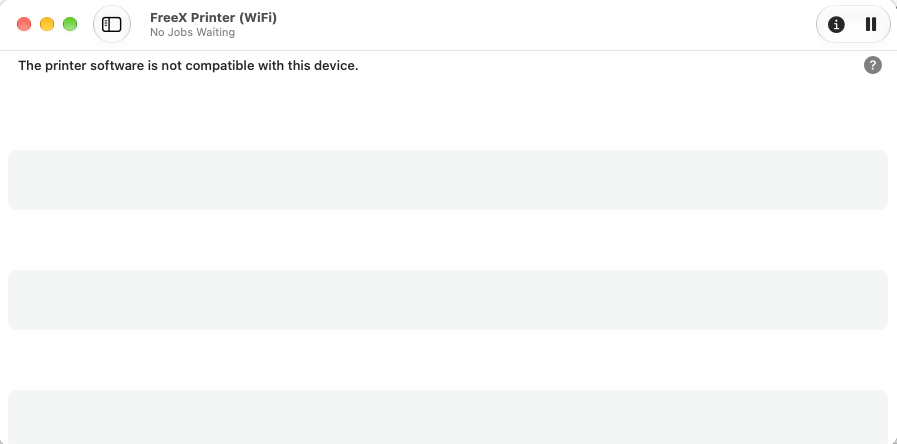
This is the error most people see first. “This device” means your Mac, not your printer.
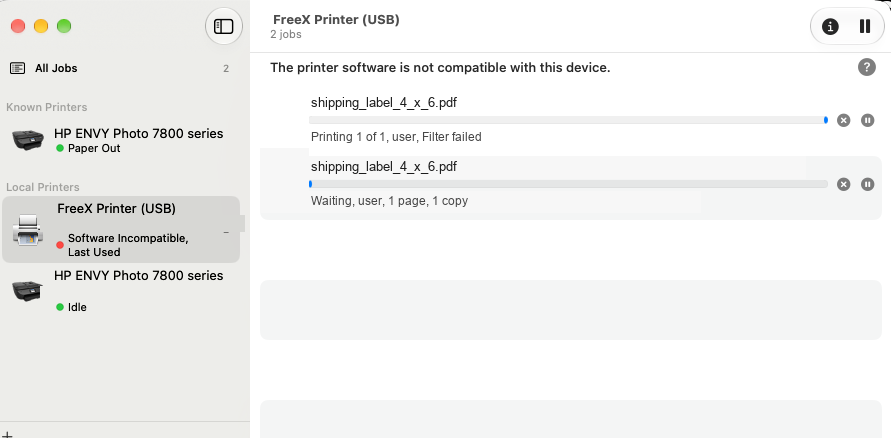
The same failure with a job in the queue: “Filter failed”, and the printer marked Software Incompatible in the sidebar. Both messages have one cause.
- You are on an Apple Silicon Mac (Apple M1, M2, M3, M4 or later) — not Intel.
- The printer itself works: it powers on, self-tests, feeds labels, and the vendor’s own utility app connects to it successfully.
- Printing from normal macOS apps (Preview, Chrome, Safari, Word, Photos) fails every time.
- macOS shows one or more of:
- “The printer software is not compatible with this device.”
- “Filter failed” in the print queue window
- The printer pauses itself after each job
- Jobs that vanish, or sit at “Printing” forever, with nothing coming out
- Reinstalling the driver changes nothing — you may have done it several times already.
In the system log (see Diagnose it yourself) the real error is:
Bad CPU type in executable
This affects both USB and Wi-Fi/network printing, because both go through the same driver component.
What it is not
This is not a broken download, not a bad USB cable, not a firmware problem, not a macOS bug, and not a defective printer. Nothing is corrupt. Your Mac simply cannot execute the kind of program the driver is made of.
Two ways to fix it
| Install Rosetta 2 | Install the native filter | |
|---|---|---|
| Time | 5 minutes | 10 minutes |
| What it does | lets macOS run FreeX’s Intel driver | replaces it with an architecture-free one |
| Uses the vendor’s driver | yes | no — installs alongside it, nothing removed |
| Works on macOS 28+ | ❌ no | ✅ yes |
| Maturity | the well-travelled path | newer, verified on USB and Wi-Fi |
Both are reversible and they can coexist. If you just want to print today, start with Rosetta. If you want this solved permanently, go straight to the native filter.
Quick fix (5 minutes)
1. Install the current driver software for your printer, from the manufacturer’s official download page. (FreeX users: see Official FreeX downloads and resources.)
2. Install Rosetta 2. Open Terminal and run:
softwareupdate --install-rosetta
Accept the licence when prompted. Small download, under a minute, no restart needed. To skip the
prompt: softwareupdate --install-rosetta --agree-to-license
3. Delete and recreate the printer queue. System Settings → Printers & Scanners → select the printer → Remove Printer…, then add it again. A queue created before Rosetta was installed can stay stuck in a broken or paused state even after the underlying problem is fixed.
4. Print a test page. It should now work, over USB and over Wi-Fi.
Reinstalling the driver again will not help. The driver file isn’t damaged. It’s an Intel program, and reinstalling it produces another identical Intel program. Only Rosetta 2 lets your Mac run it.
Why this happens
macOS prints through CUPS. Every print job travels a chain:
App → PDF → CUPS → raster image → VENDOR FILTER → printer language → printer
                                   ↑
                        the driver program that breaks
The vendor filter is a small program the printer manufacturer supplies to translate a page image
into that printer’s own language. It lives in /usr/libexec/cups/filter/, and the printer’s PPD
file names it. For FreeX:
gunzip -c /Library/Printers/PPDs/Contents/Resources/FreeX.ppd.gz | grep -i cupsFilter
*cupsFilter: "application/vnd.cups-raster 0 rastertoFreeX"
Now ask what kind of program that filter actually is:
file /usr/libexec/cups/filter/rastertoFreeX
/usr/libexec/cups/filter/rastertoFreeX: Mach-O 64-bit executable x86_64
x86_64 means Intel. There is no arm64 slice — it is not a universal binary. An Apple Silicon
Mac cannot run Intel code natively. Without Rosetta 2 the kernel refuses to launch it, and CUPS
records:
execv of /usr/libexec/cups/filter/rastertoFreeX failed. err:86, Bad CPU type in executable
STATE: +com.apple.badarch-error
PID 12345 (/usr/libexec/cups/filter/rastertoFreeX) stopped with status 186 (Bad CPU type in executable)
macOS then shows you the far less helpful “Filter failed” and “The printer software is not compatible with this device.”
Rosetta 2 is Apple’s Intel-to-Apple-Silicon translation layer. Install it and CUPS can run the Intel filter under translation. Nothing else changes.
Why Rosetta wasn’t already installed
Rosetta 2 is not preinstalled on Apple Silicon Macs. macOS offers to install it the first time you open an Intel app — a visible prompt you click through.
A printer filter is never opened by you. It’s launched by cupsd, a background system daemon with
no window to show a prompt in. So the automatic offer never fires. On a Mac that has never run any
Intel software, the driver fails from the moment it’s installed, and the only honest explanation is
buried in a log file.
That’s why this is so hard to search for: the visible error blames the printer, and the real cause is a missing system component nobody told you about.
Diagnose it yourself
Option A — run the diagnostic script
Read-only. It installs nothing, changes no setting, touches no printer, and enables no logging. It scans every CUPS filter on your Mac, so it works for any printer brand.
curl -fsSL https://raw.githubusercontent.com/giladmoyal-AI/freex-macos-apple-silicon-fix/main/scripts/diagnose_freex_macos.sh -o diagnose_freex_macos.sh
less diagnose_freex_macos.sh     # always read a script before you run it
bash diagnose_freex_macos.sh
It reports your macOS version and CPU, whether Rosetta 2 is installed, every vendor print filter and its architecture, your printer queues, and a plain-English verdict with the exact next step.
Add --log to include recent CUPS errors, or --help for usage.
Option B — check by hand
# 1. Which CPU?  arm64 = Apple Silicon, x86_64 = Intel
uname -m

# 2. Are any installed print filters Intel-only?
for f in /usr/libexec/cups/filter/*; do
  file "$f" | grep -qi 'x86_64' && ! file "$f" | grep -qi 'arm64' && file "$f"
done

# 3. Is Rosetta 2 present?
/usr/bin/pgrep -q oahd && echo "Rosetta installed" || echo "Rosetta NOT installed"

# 4. Which filter does your printer's PPD call for?
gunzip -c /Library/Printers/PPDs/Contents/Resources/YOUR_PPD.ppd.gz | grep -iE 'cupsFilter'

# 5. Where is it, and what is it?
find /Library /usr/libexec -type f -name 'rastertoFreeX' 2>/dev/null \
  -exec ls -l {} \; -exec file {} \;
arm64 in step 1 + any output from step 2 + “NOT installed” in step 3 = this is your problem.
Don’t trust the “Intel-based Apps” screen
macOS 27 has a screen at → About This Mac → Intel-based Apps → Details…:
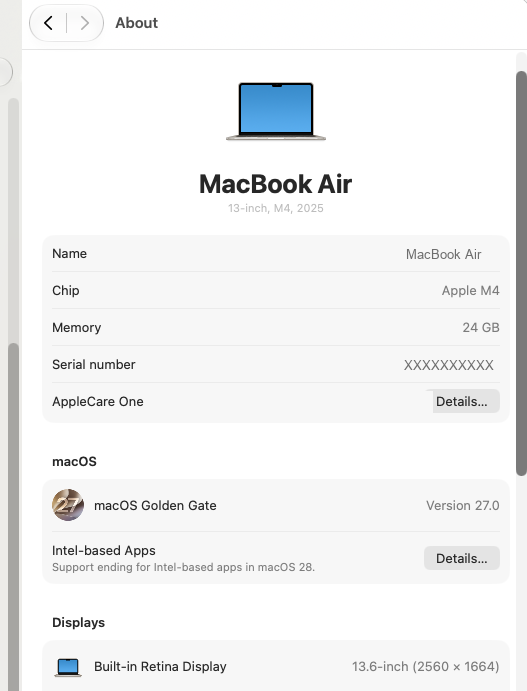
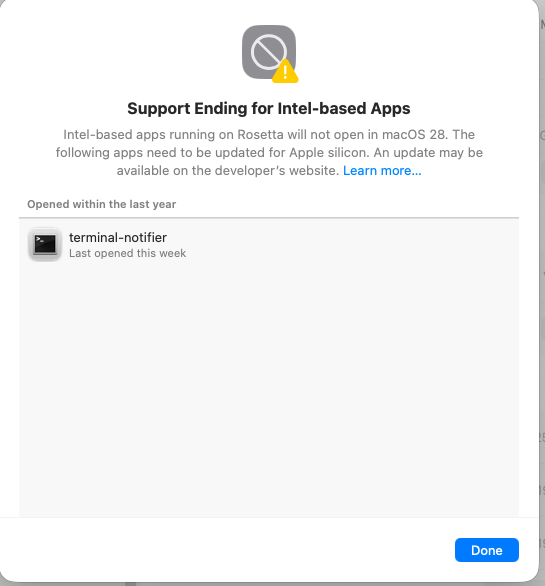
This screen cannot tell you whether Rosetta 2 is installed, and it will never list your printer driver. It shows Intel applications you have launched. CUPS filters are background components, so they never appear here.
This is a genuine trap. In the session this guide came from, seeing an unrelated Intel app listed here led to the conclusion “Rosetta is present and working” — which was wrong, and cost hours of unnecessary work reverse-engineering the printer protocol. Rosetta was not installed at all.
Use the real check instead:
/usr/bin/pgrep -q oahd && echo "Rosetta installed" || echo "Rosetta NOT installed"
The screen is useful for one thing: it confirms Apple’s deadline in writing — “Intel-based apps running on Rosetta will not open in macOS 28.”
Option C — confirm it in the CUPS log
The definitive proof:
sudo cupsctl --debug-logging        # turn on verbose logging
# ...now try to print, and let it fail...
sudo tail -n 100 /var/log/cups/error_log
Search that output for Bad CPU type in executable. If it’s there, stop looking — that’s the whole
problem.
Turn logging back off afterwards; it’s noisy and writes a lot to disk:
sudo cupsctl --no-debug-logging
The full fix
1. Install Rosetta 2
softwareupdate --install-rosetta
Read and accept the licence. No restart required.
Non-interactive: softwareupdate --install-rosetta --agree-to-license
2. Verify the filter can now execute
Point this at your own printer’s filter:
arch -x86_64 /usr/libexec/cups/filter/rastertoFreeX
Good — the filter prints its own usage message, meaning it launched:
ERROR: rastertoepson job-id user title copies options [file]
Every CUPS filter takes job-id user title copies options [file], so a usage complaint is success
here. (rastertoepson is a leftover string from the open-source filter FreeX’s driver was built
from. It’s normal and not a sign you have the wrong driver.)
Bad — Rosetta didn’t install; run step 1 again and watch for errors:
Bad CPU type in executable
This proves the filter can run. It doesn’t print anything and is not a print test.
3. Recreate the printer queue
A queue created while the driver was unusable can stay paused or hold dead jobs.
- System Settings → Printers & Scanners
- Select the printer → Remove Printer…
- Add it again — USB or Wi-Fi
- If it shows as paused, open the queue and choose Resume
4. Print
Print a real label or test page. USB and Wi-Fi should both work now.
Official FreeX downloads and resources
This repository does not redistribute FreeX software, drivers, firmware, or binaries — those are proprietary. Get them from FreeX directly:
| Resource | Link |
|---|---|
| FreeX official site | https://getfreex.com |
| macOS driver + WiFi Toolbox (and FreeX’s own macOS setup guide) | https://getfreex.com/pages/how-to-print-thermal-labels-via-usb-on-macos |
| Windows driver + setup guide | https://getfreex.com/pages/how-to-print-thermal-labels-via-usb-on-windows-10 |
| After-sales FAQ — firmware, character library, troubleshooting | https://getfreex.com/pages/freex-thermal-label-printer-faq-after-sales |
| FreeX support | cs@getfreex.com |
At the time of writing, FreeX hosts the actual download files on Google Drive and Zoho WorkDrive mirrors linked from those pages. Always start from the FreeX page rather than a saved mirror link, so you get the current version.
The macOS package
The package this guide was written against is MacOS_FreeX_Driver_WiFi-Toolbox_v1.3, containing:
FreeX Driver for MacOS v1.3.pkg— installs the PPD (FreeX.ppd.gz) and the CUPS filter (rastertoFreeX). This is the component that is Intel-only.FreeX WiFi Toolbox for MacOS v1.3.app— configures the printer’s wireless and network settings. This app is not affected by the Rosetta problem, which is why it keeps working while printing fails.
Which models this applies to
FreeX’s macOS guide covers the FreeX WiFi and FreeX USB models. The newer FreeX WiFiMAX
is a different product that FreeX documents separately — if you have that model, follow FreeX’s own
instructions first, then come back here if you still hit Filter failed.
Note: FreeX’s own macOS page does not currently mention Apple Silicon, M1/M2/M3/M4, or Rosetta 2 — which is a large part of why this problem is so hard to solve from the official documentation alone.
A word on firmware
FreeX publishes firmware and character-library updates on the after-sales FAQ page linked above. This guide never requires a firmware update, and we deliberately don’t link firmware files directly: a flash interrupted by a power loss, or the wrong file for your serial-number range, can permanently ruin a thermal printer. If you genuinely need firmware, get it from that page, match your serial range carefully, and follow FreeX’s instructions.
Never take FreeX drivers or firmware from third-party “driver download” sites.
Setting up a FreeX printer from scratch
Brand new printer, nothing installed yet? Follow this order and you will never see the errors this guide is about.
⚡ Install Rosetta 2 before you add the printer
On an Apple Silicon Mac this single step prevents the entire problem. The FreeX driver needs Rosetta, and a printer queue created before Rosetta is installed stays broken even after you install it — you have to delete and recreate it. One command up front saves the whole cycle:
softwareupdate --install-rosetta
1. Load the labels and calibrate
- Connect power, switch the printer on.
- Open the cover and drop in the label roll — these printers feed labels facing up, off the top of the roll.
- Slide the paper guides so they touch the roll without pinching it.
- Close the cover until it clicks on both sides. A cover latched on only one side causes skewed or blank labels.
- Calibrate the gap sensor: with the printer idle, hold the feed button until it advances a couple of labels and stops cleanly at a label edge.
If it feeds continuously or stops mid-label, the sensor has not found the gap — reseat the roll and repeat. A printer that cannot detect label gaps prints nothing, however perfect your Mac setup is. Do this before you touch the Mac.
2. Download the FreeX software
Get it from FreeX directly — see Official FreeX downloads and resources. Unzip it and you should see exactly two items:
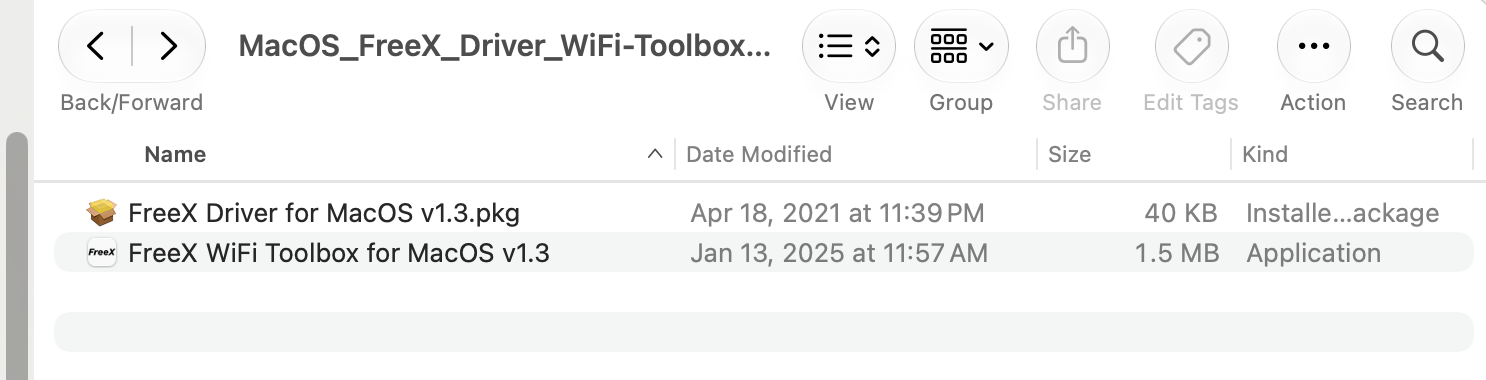
FreeX Driver for MacOS v1.3.pkg— installs the PPD and the CUPS filter. This is the part that needs Rosetta.FreeX WiFi Toolbox for MacOS v1.3.app— configures the printer’s Wi-Fi and network settings. This app is a universal binary and runs natively; it is not the part that breaks.
Note the driver’s date: April 2021 — months before Apple Silicon Macs were widely shipping. That date is the root of everything else in this guide.
3. Install Rosetta 2 — Apple Silicon only
softwareupdate --install-rosetta
Type A and press Return to accept the licence. Under a minute, no restart. Skip this only if
uname -m prints x86_64 (an Intel Mac).
4. Install the driver
Double-click FreeX Driver for MacOS v1.3.pkg and go through the installer. If macOS asks you
to approve software from an unidentified developer, allow it in System Settings → Privacy &
Security.
Don’t open the Toolbox or add the printer yet.
5. Add the printer over USB first
Even if you intend to print over Wi-Fi, get USB working first. It isolates variables: if USB works and Wi-Fi doesn’t, the problem is genuinely networking.
Follow USB setup, then print a test label.
6. Then set up Wi-Fi, if you want it
Only once USB prints correctly, follow Wi-Fi setup and Add a Wi-Fi printer on macOS.
7. Make 4x6 the default
See 4x6 label defaults so you are not changing paper size on every print.
Which connection are you using?
There are three ways to connect a label printer, and it’s worth being clear which one you have, because the setup differs but the Rosetta fix is identical for all three.
| Connection | How the printer attaches | macOS setup |
|---|---|---|
| USB | Cable straight to the Mac | Add from the Default tab — USB setup |
| Wi-Fi (wireless LAN) | Printer joins your 2.4 GHz network | Configure via Toolbox, then add by IP — Wi-Fi setup |
| Wired Ethernet (wired LAN) | RJ45 cable to your router or switch | Add by IP, exactly like Wi-Fi — see below |
The FreeX WiFi model covered by this guide connects over USB and Wi-Fi. It has no Ethernet port, so the wired path doesn’t apply to it — but it does apply to plenty of other label printers, and the macOS steps are the same.
Wired Ethernet (LAN)
If your printer has an RJ45 port, plug it into your router or switch and it will normally pick up an IP address by DHCP. From there, macOS treats wired and wireless network printers identically — both are raw TCP printing on port 9100:
- Find the printer’s IP (print a self-test/configuration label, or check your router’s client list)
- Confirm your Mac can reach it:
nc -vz 192.168.1.100 9100 - Add it via Add Printer → IP with Protocol HP Jetdirect – Socket — full steps
Everything in Add a Wi-Fi printer on macOS, the port 9100 tests, and the DHCP-reservation advice applies unchanged to a wired connection. The only part that’s Wi-Fi-specific is configuring the wireless credentials in the Toolbox.
“Wi-Fi” and “LAN” both mean network printing here. Wi-Fi is a wireless LAN; Ethernet is a wired LAN. Once the printer has an IP address, macOS doesn’t care how it got there.
Which should you actually use?
If the printer sits next to the Mac and you print labels for a living, use USB.
Both work, and print identically — the same filter produces the same bytes either way. But they fail differently, and USB has far less that can go wrong:
| USB | Wi-Fi | |
|---|---|---|
| Depends on an IP address | no | yes |
| Breaks when the DHCP lease changes | no | yes, unless reserved |
| Breaks if another device serves DHCP | no | yes — see rogue DHCP |
| Breaks if Wi-Fi drops or the router reboots | no | yes |
| Printer can sit anywhere | no | yes |
Every network failure documented in this guide — a lease moving, a second DHCP server handing out addresses, a queue pointing at an address nothing answers on — applies only to Wi-Fi. A USB queue has no address to be wrong about.
Wi-Fi is worth it when the printer needs to live away from the Mac, or be shared. If you use it, reserve the address on your router — that removes the most common failure.
Best of both: set up both queues. They cost nothing, they use the same driver, and if one path breaks mid-shipping you switch printers in the print dialog instead of troubleshooting.
USB setup
- Connect the printer by USB and power it on.
- System Settings → Printers & Scanners → Add Printer, Scanner, or Fax…
- On the Default tab, select your printer.
- In the Use dropdown choose Select Software…
- Pick your printer’s driver — for FreeX, FreeX WiFi Thermal Printer.
- Click Add.
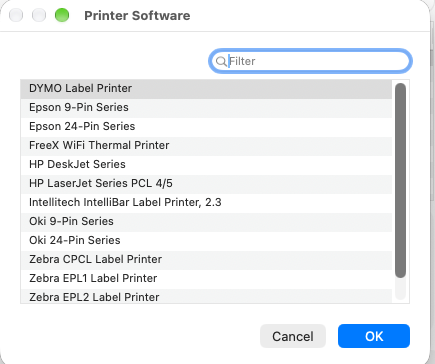
The installed driver list. FreeX WiFi Thermal Printer sits between Epson and HP. If it isn’t
listed at all, the driver package didn’t install — run the .pkg again before going further.
These two screenshots were taken with only FreeX’s own driver installed. If you have also installed the native filter, you will see a second entry, FreeX WiFi Thermal Printer (Native). The two look almost identical, so check for the
(Native)suffix and pick deliberately:
Entry Which driver Needs Rosetta FreeX WiFi Thermal PrinterFreeX’s own, Intel-only yes — and stops working at macOS 28 FreeX WiFi Thermal Printer (Native)this project’s script no
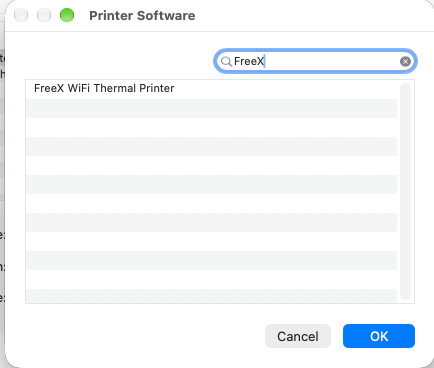
Faster: type FreeX in the filter box, select it, click OK. This is the step people skip — and
skipping it is what leaves macOS on a generic driver. With the native filter installed, this same
list shows two FreeX entries — see the note above.
Do not accept a generic driver. If macOS auto-fills Generic PostScript Printer or Generic PCL Printer, change it. A thermal label printer understands neither PostScript nor PCL, and a generic driver produces “Filter failed” or pages of garbage.
Created this queue before installing Rosetta? Remove and re-add it — see step 3 above.
Wi-Fi setup
Full walkthrough: docs/wifi-setup.md. Summary for FreeX:
Connect by USB first — the Toolbox configures Wi-Fi through the USB connection.
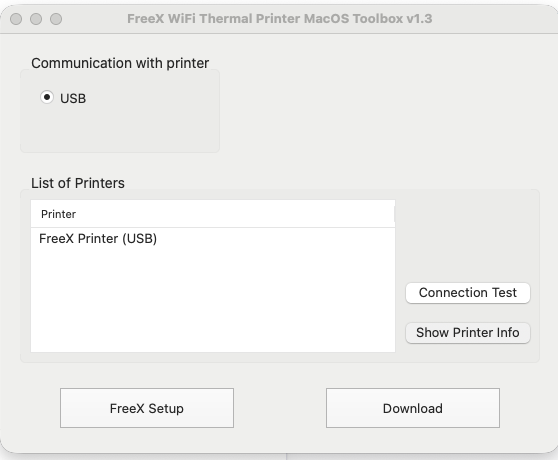
The Toolbox connects over USB. This working does not mean printing will work — the Toolbox never uses the CUPS driver that fails.
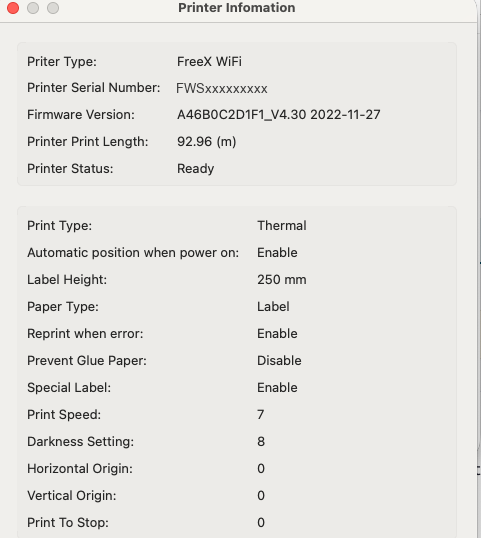
“Show Printer Info” reading the hardware successfully. Useful confirmation that the printer and cable are fine — and a reminder that this proves nothing about macOS printing. The Toolbox behaves the same whichever driver you use; it never touches the CUPS filter.
FreeX Setup → WiFi
| Field | Value |
|---|---|
| Mode | STA |
| Authentication | WPA-PSK/WPA2-PSK |
| Type | WPA2-PSK |
| Encryption | AES |
| SSID | YOUR_WIFI_NAME (2.4 GHz) |
| Password | your Wi-Fi password |
FreeX Setup → Ethernet
| Field | Value |
|---|---|
| DHCP | Enable |
| Port | 9100 |
Apply, then restart the printer:
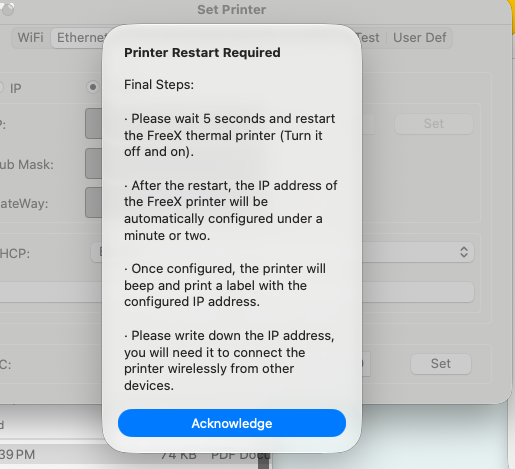
It prints a small configuration label showing its IP address, the network it joined, and port
9100.
These printers are 2.4 GHz only. If your router broadcasts one merged name for 2.4 GHz and 5 GHz, that is the most common reason setup fails.
Don’t know your printer’s IP? The easiest way: switch the printer off, wait 5 seconds, switch it on, and wait a minute — it prints a small label showing its IP, network name and port. Full details and two other methods: How to find your printer’s IP address.
Confirm the Mac can reach it (use your printer’s real IP):
nc -vz 192.168.1.100 9100
Connection to 192.168.1.100 port 9100 [tcp/hp-pdl-datastr] succeeded!
Add a Wi-Fi printer on macOS
- System Settings → Printers & Scanners → Add Printer, Scanner, or Fax…
- Choose the IP tab.
| Field | Value |
|---|---|
| Address | your printer’s IP, e.g. 192.168.1.100 |
| Protocol | HP Jetdirect – Socket |
| Queue | leave blank |
| Name | anything, e.g. Label Printer (WiFi) |
| Use | Select Software… → your printer’s driver |
- Click Add.
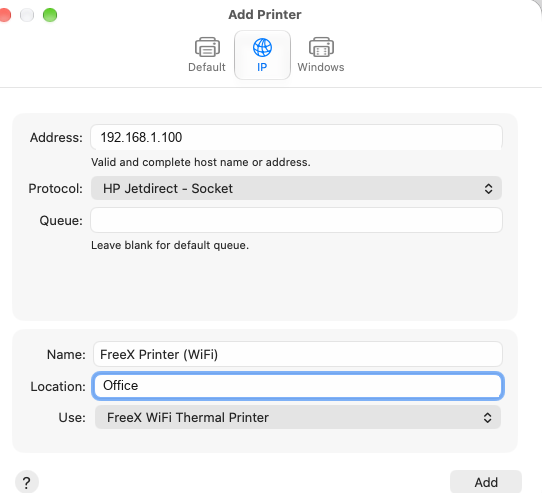
Queue stays blank. Use must be a FreeX driver, not a generic one. This screenshot shows the vendor driver; if you’re using the native filter, choose FreeX WiFi Thermal Printer (Native) here instead — everything else is identical.
“HP Jetdirect – Socket” is correct, and has nothing to do with HP. It’s simply macOS’s name for raw TCP printing on port 9100, which is what these printers speak. Don’t use IPP, LPD, or AirPrint.
This works only after Rosetta 2 is installed — network queues use the same Intel filter as USB queues.
4x6 label defaults
Tired of changing Paper Size on every print? Set it once.
Which 4x6 do you want?
The FreeX driver offers two sizes that both look like “4x6” — they are not the same:
| Option | Actual size | Use when |
|---|---|---|
w288h432 |
exactly 4.00 x 6.00 inches | US shipping labels (USPS, UPS, FedEx, Amazon) |
w283h425 |
100 x 150 mm = 3.94 x 5.91 in | labels sold in metric sizes |
The driver ships with w283h425 as its default, so if you buy US 4x6 labels you are
printing about 1.5% small unless you change it. Usually harmless, but it can shift a barcode
near the edge.
Method 1 — set the queue default (recommended)
This applies in every app, so you never touch Paper Size again.
Step 1: get the queue’s internal name. This is not the name you see in System Settings:
lpstat -p
You’ll see something like FreeX_Native_WiFi — underscores, no spaces or brackets. That exact
string is what you type in the commands below, in place of <QUEUE>.
⚠️ Two things trip people up here.
<QUEUE>is a placeholder — substitute your own name fromlpstat -p. Pasting it literally gives youUnable to get PPD file for <QUEUE>.And the display name does not work.
lpoptions -p "FreeX Printer (WiFi)"fails the same way. Only the underscored internal name works.
Prefer not to copy by hand? This prints ready-to-run commands with your own queue names filled in:
for q in $(lpstat -v | sed -n 's/^device for \([^:]*\):.*/\1/p'); do
  echo "lpoptions -p $q -l | grep -i PageSize"
done
Step 2: see the available sizes (the * marks the current default):
lpoptions -p <QUEUE> -l | grep -i PageSize
Step 3: set it.
lpoptions -p <QUEUE> -o PageSize=w288h432      # true 4x6 inches
# or
lpoptions -p <QUEUE> -o PageSize=w283h425      # 100 x 150 mm
Step 4: confirm.
lpoptions -p <QUEUE> -l | grep -i PageSize # the * marks the active size
To apply it for every user on the Mac rather than just you:
sudo lpadmin -p <QUEUE> -o PageSize=w288h432
Quit and reopen the app afterwards — print dialogs cache the old size.
Method 2 — save a print preset
Some apps (Preview especially) override the queue default with US Letter anyway. A preset wins:
- Open a label, press Cmd+P
- Printer -> your FreeX queue
- Paper Size -> the 4x6 / 100x150 mm entry
- Scale -> 100%, or Scale to Fit -> Print Entire Image
- Presets -> Save Current Settings as Preset…
- Name it
FreeX 4x6 - Choose Only this printer if offered, so it doesn’t hijack your other printers
Select FreeX 4x6 from Presets whenever you print labels.
⚠️ Then uncheck one box, or the preset won’t stick. In Presets → Edit Preset List there is an option called “Reset Presets Menu to ‘Default Settings’ After Printing”. While it is ticked, macOS drops your preset after every print and reverts to defaults — so the next label comes out wrong again. Uncheck it and macOS remembers your preset per printer. See the full explanation.
Don’t change the system-wide default
System Settings has a global Default paper size. Leave it on Letter. Changing it makes every printer default to 4x6, which is rarely what you want. Set it per queue instead.
Still wrong?
- The label file itself may not be 4x6 — a Letter-size PDF with a label in the corner prints exactly that way
- Scale to Fit should be Print Entire Image, not Fill Entire Paper
- Check the physical roll matches, and that the gap sensor is calibrated
The Rosetta 2 deadline
Rosetta 2 fixes this today, but it is being retired.
- macOS 27 is the last release with full Rosetta 2.
- From macOS 28, Apple narrows Rosetta to legacy gaming frameworks only. General-purpose Intel binaries — including printer drivers and vendor utilities — will no longer run.
- macOS 26.4+ already shows a warning when you launch an Intel-only app.
What that means for you
| Situation | What to do |
|---|---|
| On macOS 27 or earlier, need it working now | Install Rosetta 2. This guide works. |
| Planning ahead | Ask your printer vendor for a native Apple Silicon (arm64) driver. It’s a reasonable request and vendor pressure is what gets them built. |
| Vendor is unresponsive or gone | Use the native filter in this repository — a script-based replacement with no CPU architecture, so Rosetta is irrelevant. Verified on USB and Wi-Fi. |
| Buying a new label printer | Check for a native Apple Silicon driver, or AirPrint / IPP Everywhere support, which needs no vendor driver at all. |
Before upgrading to macOS 28, re-run the diagnostic script. If it still reports an Intel-only filter, your printer will stop working on that upgrade.
A fix that outlives Rosetta
This repository includes a native replacement filter for FreeX printers.
It does the same job as FreeX’s rastertoFreeX — converts a rasterised page into the printer’s TSPL
commands — but it is written as a script. A script has no CPU architecture, so it cannot fail
with Bad CPU type in executable, on any Mac, ever. No Rosetta required.
It has been verified printing real 4x6 USPS shipping labels over both USB and Wi-Fi, with scannable barcodes. It installs alongside FreeX’s driver without touching it, so you can switch back at any time.
cd native-filter && sudo bash install.sh
See native-filter/README.md for details, options and caveats.
Troubleshooting
Full detail in docs/troubleshooting.md. For streaks, smearing, faded labels and print-head cleaning, see docs/print-quality.md.
| Symptom | Cause | Fix |
|---|---|---|
| Vendor app sees the printer, macOS printing fails | Vendor app bypasses CUPS; the CUPS filter is Intel-only | softwareupdate --install-rosetta |
Bad CPU type in executable in the CUPS log |
Rosetta 2 missing | Install Rosetta, verify with arch -x86_64 … |
| “Filter failed” on every job | Same cause — or a generic driver got selected | Install Rosetta; confirm the queue uses the real vendor driver |
| Printer pauses itself after each job | Filter failing | Install Rosetta, then Resume the queue |
nc -vz IP 9100 succeeds but nothing prints |
Network is fine; the filter is failing | It’s the Rosetta problem, not a network problem |
| Reinstalled the driver repeatedly, no change | Reinstalling an Intel binary yields an Intel binary | Install Rosetta |
| USB queue still errors after installing Rosetta | Stale queue created pre-Rosetta | Remove the printer, add it again |
| Printer’s IP is on a different subnet than your Mac | Something other than your router is handing out addresses — often macOS Internet Sharing | Find the rogue DHCP server — a router reservation cannot fix this |
| Worked yesterday, dead today (Wi-Fi) | DHCP gave the printer a new IP | Reserve the printer’s IP on your router — the most common delayed failure |
| Labels tiny, shifted, or on a huge blank page | App defaulted to Letter | Use a saved 4x6 preset |
| Streaks, smearing, faded or blurry labels | Dirty print head or platen roller | Clean the printer — usually five minutes with a cotton swab |
| Size or borders differ on every print | “Scale to Fit” is recalculating, or queue and app disagree on paper size | Match the sizes and set Scale to 100% |
FAQ
Why won’t my FreeX printer print from my Mac?
Because the FreeX driver is Intel-only software and your Mac has an Apple Silicon chip (M1, M2, M3,
M4). It physically cannot run that software until you install Rosetta 2, Apple’s compatibility layer.
Run softwareupdate --install-rosetta, then delete and re-add the printer. The printer itself is
fine.
Why does my label printer work on Windows but not on my Mac?
The Windows driver and the Mac driver are completely separate programs. The Windows one was built for your PC’s processor and works. The Mac one was built for Intel Macs and was never rebuilt for Apple Silicon, so your Mac can’t run it without Rosetta 2. It’s not that the printer prefers Windows.
What is Rosetta 2, in plain English?
A translator built by Apple. Older Mac software was written for Intel chips; new Macs use Apple’s own chips, which speak a different language. Rosetta 2 translates on the fly so old software still runs. It’s free, official, small, and installed with one command.
Can this damage my Mac or my printer?
No. Installing Rosetta 2 adds an Apple component; it doesn’t modify your files, apps, or settings, and needs no restart. Removing and re-adding a printer only affects that printer’s entry on your Mac. The diagnostic script in this repo is read-only and changes nothing. Nothing in this guide touches printer firmware — the one genuinely risky thing with thermal printers, which is why we don’t go near it.
How do I open Terminal on a Mac?
Press Command (⌘) + Space, type Terminal, press Return. See Not technical? Start here for the full walkthrough.
Do I need an administrator password?
Usually not — softwareupdate --install-rosetta normally runs without one. If you’re asked, it’s
your Mac login password. Nothing is displayed as you type it; that’s normal, just press Return.
How long does this take?
About five minutes total. The Rosetta download is under a minute on a normal connection; re-adding the printer takes two or three.
It said Rosetta is already installed, or finished instantly. Now what?
Then Rosetta wasn’t your problem, or it was already fixed. Go straight to deleting and re-adding the printer — a queue created while the driver was broken stays broken. If it still fails, run the diagnostic script.
Do I need to uninstall or reinstall the FreeX driver first?
No. That’s the most common wasted step. The driver you already have is fine — your Mac just couldn’t run it. Install Rosetta 2 and the existing driver starts working.
Do I have to do this for every printer?
Rosetta 2 is installed once per Mac and covers every Intel program. But each printer queue created while things were broken should be deleted and re-added.
What is a CUPS filter?
CUPS is the printing system built into macOS. A “filter” is a small program from the printer
manufacturer that converts your document into the specific commands your printer understands. FreeX’s
filter is called rastertoFreeX. It’s this program — not the printer — that fails to run.
My printer prints a test page from the FreeX Toolbox but not from Preview or Chrome
Classic symptom, and it confirms the diagnosis. The Toolbox talks to the printer directly and never uses the macOS driver. Preview and Chrome go through macOS, which needs the driver. So the Toolbox succeeds while everything else fails. Your hardware is fine; install Rosetta 2.
Does this work on macOS Sonoma, Sequoia, Tahoe, 26, or 27?
Yes, on every macOS version through 27. From macOS 28 onward Rosetta 2 no longer covers printer drivers, and this fix stops working — see The Rosetta 2 deadline.
What does “Filter failed” mean on macOS?
CUPS successfully prepared your document but could not run the printer manufacturer’s conversion program (the “filter”). On Apple Silicon Macs the usual reason is that the filter is an Intel-only binary and Rosetta 2 isn’t installed. It is a software failure on your Mac, not a printer, cable, or network failure.
What does “The printer software is not compatible with this device” mean?
Despite how it reads, “this device” means your Mac, not your printer. macOS is saying the driver software can’t run on this computer’s processor. The driver is Intel-only; your Mac is Apple Silicon. Install Rosetta 2 and it becomes compatible.
How do I know if my Mac is Apple Silicon or Intel?
uname -m
arm64 = Apple Silicon (M1/M2/M3/M4…). x86_64 = Intel. Or check → About This Mac; Apple
Silicon Macs list a “Chip” like Apple M4, Intel Macs list a “Processor”.
How do I check whether a printer driver is Intel-only?
file /usr/libexec/cups/filter/*
Any filter that says x86_64 without also saying arm64 is Intel-only and needs Rosetta 2. A
line reading “universal binary” with both architectures is fine.
Is Rosetta 2 safe to install?
Yes. It’s an official Apple component, installed with Apple’s own softwareupdate command from
Apple’s servers. It doesn’t modify your existing apps, needs no restart, and can be installed on any
Apple Silicon Mac. Many people already have it without knowing.
Will reinstalling the printer driver fix “Filter failed”?
No. The downloaded driver isn’t corrupt — it’s Intel software, and reinstalling it just puts the same Intel software back. This is the single biggest time-waster with this problem. Install Rosetta 2 instead.
Does this affect USB printing, Wi-Fi printing, or both?
Both. USB and network printing use different transports but the same driver filter, and the filter is what’s failing. A printer that works over USB in the vendor’s utility but fails from Preview over both USB and Wi-Fi is the classic signature.
Why does the manufacturer’s own app connect fine while macOS can’t print?
The vendor’s utility talks to the printer directly, over USB or the network. It never goes through CUPS and never runs the CUPS filter. So it connects, tests, and configures perfectly while every normal print job fails. A successful connection test only proves your hardware and cabling are fine — which is useful, because it rules them out.
Does Rosetta 2 slow down printing?
Not noticeably. The translated code only converts a page image into printer commands — a tiny amount of work next to the printing itself. Rosetta also caches translations after first run.
Do I need to reinstall Rosetta after a macOS update?
Usually no; it persists across updates. If a major upgrade seems to have removed it, re-running
softwareupdate --install-rosetta is harmless and takes seconds.
Is Rosetta 2 going away?
Yes. macOS 27 is the last version with full Rosetta 2 support. From macOS 28 it’s limited to legacy game frameworks, so Intel-only printer drivers will stop working entirely. See The Rosetta 2 deadline.
My printer isn’t a FreeX. Does this still apply?
Yes, if its driver ships an Intel-only CUPS filter — common for budget thermal label printers whose Mac drivers haven’t been rebuilt since 2020. The diagnosis and fix are identical; only the filter name differs. See docs/other-printers.md.
Can I print without the vendor driver at all?
Sometimes. Many of these printers accept raw commands on TCP port 9100 (often TSPL or ESC/POS), and some work with a generic driver for that language. It’s fiddly and worth it only if no native driver exists. See docs/technical-notes.md — clearly marked experimental.
Where is the CUPS error log on macOS?
/var/log/cups/error_log. Read it with sudo tail -n 100 /var/log/cups/error_log. For more detail,
enable debug logging first with sudo cupsctl --debug-logging, reproduce the failure, then turn it
off with sudo cupsctl --no-debug-logging.
Technical notes
docs/technical-notes.md covers how the PPD, the CUPS filter, and the
print chain fit together; how the architecture mismatch was traced through cupsctl --debug-logging;
what strings on the FreeX filter reveals about its TSC/TSPL command set (SIZE, GAP, DENSITY,
BITMAP, PRINT); and generalisable lessons for debugging any Intel-only vendor component on
Apple Silicon.
It also documents an experimental direct-to-port-9100 approach explored before the real cause was found. That is not a recommended solution — once Rosetta 2 is installed the official driver works normally and there’s no reason to bypass it.
Questions and help
Ask a question in Discussions →
If this guide didn’t solve it, or your printer behaves differently, ask there rather than guessing. Questions get marked with an accepted answer, so the next person with the same problem finds it straight away.
Useful to include:
- Your printer make and model
sw_versanduname -moutput- The output of
file /usr/libexec/cups/filter/*(or the diagnostic script) - What you’ve already tried
Did this fix your printer? Let us know → Reports from non-FreeX printers are especially welcome — they help confirm how widely this applies.
Please don’t post private information. No Wi-Fi names or passwords, no local IP addresses, no printer serial numbers, no shipping labels, no customer or order data. Use placeholders like
YOUR_WIFI_NAMEand192.168.1.100, and redact screenshots before uploading them.
Contributing
If this fixed your printer — or if your model, brand, or macOS version needs a different step — please open an issue or pull request. Reports from non-FreeX printers are especially welcome, so this can list more confirmed cases.
Do not include private information in issues. No Wi-Fi network names or passwords, no local IP
addresses, no printer serial numbers, no shipping labels, no customer names or addresses, no order or
tracking numbers. Use placeholders like YOUR_WIFI_NAME, 192.168.1.100, and YOUR_MAC_USERNAME,
and redact log excerpts before posting.
How this guide was verified
This guide comes from fixing a real FreeX WiFi Thermal Label Printer on a MacBook Air (Apple M4, macOS 27.0) that was failing with both error messages. Being explicit about what that does and doesn’t establish:
Verified directly on the affected Mac — these are quoted from real output, not reconstructed:
rastertoFreeXreports asMach-O 64-bit executable x86_64(Intel-only, no arm64 slice)- The PPD’s filter line is exactly
*cupsFilter: "application/vnd.cups-raster 0 rastertoFreeX" /var/log/cups/error_logcontainederr:86, Bad CPU type in executable,STATE: +com.apple.badarch-error, andstopped with status 186- After installing Rosetta 2,
arch -x86_64 /usr/libexec/cups/filter/rastertoFreeXreturnsERROR: rastertoepson job-id user title copies options [file] w283h425is the PPD’s*DefaultPageSizeand is defined as100mmx150mm- The driver’s display name is exactly
FreeX WiFi Thermal Printer - The TSPL command strings quoted in technical notes are from the binary
- The last
badarcherror was logged roughly 50 minutes before the USB and network queues were recreated; both have been idle, enabled, and error-free since
Observed once, on one printer and one network — correct for that setup, but not independently confirmed across models or firmware versions:
- The specific FreeX WiFi Toolbox field values (Mode
STA,WPA-PSK/WPA2-PSK,WPA2-PSK,AES, DHCPEnable, Port9100) - That the printer prints a configuration label showing its IP, network, and port after a restart
- The exact wording and layout of Toolbox screens, which vary between versions
If something differs on your setup, that’s useful — please open an issue so this can be corrected.
Disclaimer
- This is an independent community troubleshooting guide. It is not affiliated with, endorsed by, or supported by FreeX, Apple, or any printer manufacturer.
- FreeX and all other trademarks belong to their respective owners, and are used here only to identify the hardware and software this guide applies to.
- No proprietary drivers, firmware, or binaries are distributed here. Obtain those only from official sources.
- Firmware updates can permanently brick a thermal printer if the wrong file is used or power is interrupted. Nothing in this guide requires a firmware update. Don’t flash firmware from unofficial sources.
- Provided as-is, without warranty. You are responsible for changes you make to your own system. See LICENSE.
Keywords: FreeX printer not working on Mac · FreeX WiFi Thermal Label Printer macOS driver · FreeX thermal printer Apple Silicon · FreeX M1 M2 M3 M4 · rastertoFreeX · FreeX WiFi Toolbox · FreeX 4x6 shipping labels · macOS “Filter failed” fix · “The printer software is not compatible with this device” · Bad CPU type in executable · Rosetta 2 printer driver · CUPS filter x86_64 · thermal label printer macOS · TSPL port 9100