Print Quality: Streaks, Smearing, Faded Labels and How to Clean the Printer
Labels coming out streaky, blurry, faded, or with white lines through the barcode? That is almost always hardware, not the driver — and usually fixed in five minutes with a cotton swab.
If nothing prints at all, or you get “Filter failed”, that’s a different problem — see the main guide.
Match the symptom
| What you see | Most likely cause | Go to |
|---|---|---|
| Vertical white line running down every label, same place | Dirt on the print head, or a burnt-out dot | Clean the head |
| Smudged or smeared print, blurry edges | Adhesive residue on head or roller | Clean the head + roller |
| Faded or grey, barcode won’t scan | Darkness too low, speed too high, or worn head | Darkness and speed |
| Too dark, letters filled in, bleeding | Darkness too high | Darkness and speed |
| Blank labels feeding through | Label roll in upside down | Media |
| Patchy, uneven darkness across the label | Dirty or worn roller, or head not latched evenly | Clean the roller |
| Print drifts down the label or crosses the gap | Gap sensor not calibrated | Calibration |
| Quality dropped suddenly after a new roll | Different media, or debris from the new roll | Media |
Know what you’re looking at
Open the cover and you’ll see the two parts that matter. Everything on this page is about keeping these two clean:
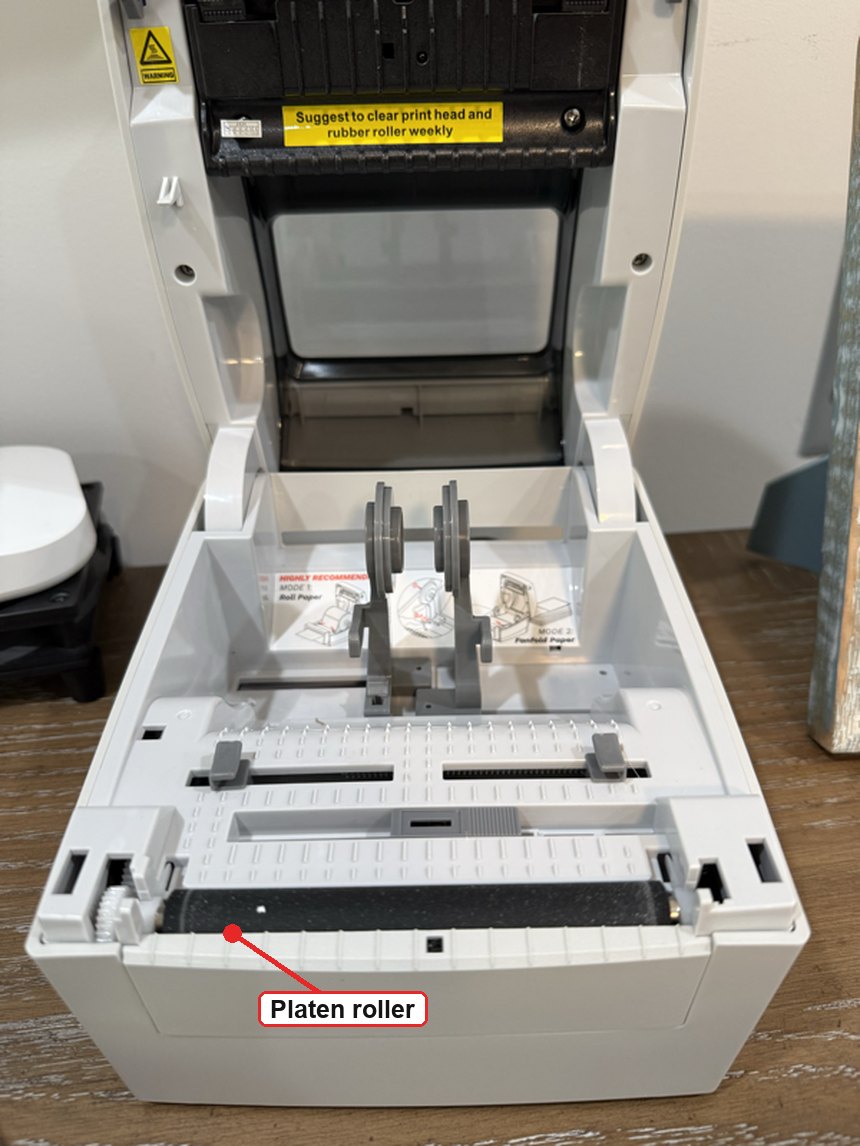
- The platen roller is the black rubber cylinder in the base — easy to spot, marked above. It presses the label against the head and pulls it through.
- The print head is on the underside of the lid, facing down. You cannot see it from this angle, which is why it is not marked here — tilt the lid up and look underneath, or see the close-up in the next section.
FreeX puts a sticker right on the print head assembly saying “Suggest to clear print head and rubber roller weekly.” They are not being cautious — these are the two wear parts, and the ones that make print quality fall off.
How to clean the print head
The single highest-value maintenance task. Do it every roll or two, or any time quality drops.
You need
- 99% isopropyl alcohol (70% works, it just needs longer to dry)
- A lint-free swab, cotton bud or microfibre cloth
- Optionally, a can of compressed air — see blowing out dust
- Nothing else. No water, no household cleaner, no ammonia
Can I use alcohol wipes?
It depends entirely on what is in them. Read the packet.
| Product | Use it? | Why |
|---|---|---|
| Alcohol prep pads / isopropyl wipes | ✅ Yes | Isopropyl and nothing else. Squeeze out the excess — damp, not soaked. 70% is fine, just dry it longer. |
| 99% isopropyl + cotton bud | ✅ Best | No water, no additives, and you control how damp it is |
| Thermal head cleaning pen or cleaning card | ✅ Yes | Purpose-made; a card feeds through like a label and does head and roller in one pass |
| Disinfecting wipes (Clorox, Lysol, Wet Ones) | ❌ No | Bleach or quaternary ammonium plus surfactants — leaves residue and attacks the head coating |
| Wipes with aloe, moisturiser or fragrance | ❌ No | The additives leave a sticky film exactly where you least want one |
| Hand sanitiser | ❌ No | Glycerin residue |
| Baby / screen / glasses wipes | ❌ No | Water or unidentified solvents |
The rule: if the ingredients say isopropyl alcohol and essentially nothing else, it is safe. If the packet mentions disinfecting, moisturising or scent, keep it away from the print head.
Blow out the dust first
Label stock sheds paper dust, and it collects in the paper path and on the gap sensor. Clear it before wiping, so you are not dragging grit across the head.
A can of compressed air, or a rubber air blower of the sort sold for camera lenses, is ideal.
- Hold the can upright. Tilting or shaking it sprays liquid propellant, which is intensely cold and can crack or freeze components.
- Use short bursts from 15–20 cm (6–8 in) away, not one long blast.
- Aim along the paper path, around the roller, and at the gap sensor.
- Do it somewhere you don’t mind dust going — otherwise you are just relocating it.
Compressed air removes dust. It does nothing to adhesive, which is what causes smearing. Blow the dust out first, then wipe with alcohol.
Steps
- Power the printer off and unplug it. Not just idle — off.
- Let it cool for a few minutes. The head runs hot and is easier to damage warm.
- Open the cover and remove the label roll. Give the paper path a few short bursts of compressed air to clear loose dust before you start wiping.
- Find the print head: a thin dark strip running the full width of the paper path, usually on the underside of the lid where the label passes.
- Dampen the swab with alcohol — damp, not dripping.
- Wipe gently along the strip, end to end, in one direction. Repeat with a clean swab until nothing more comes off.
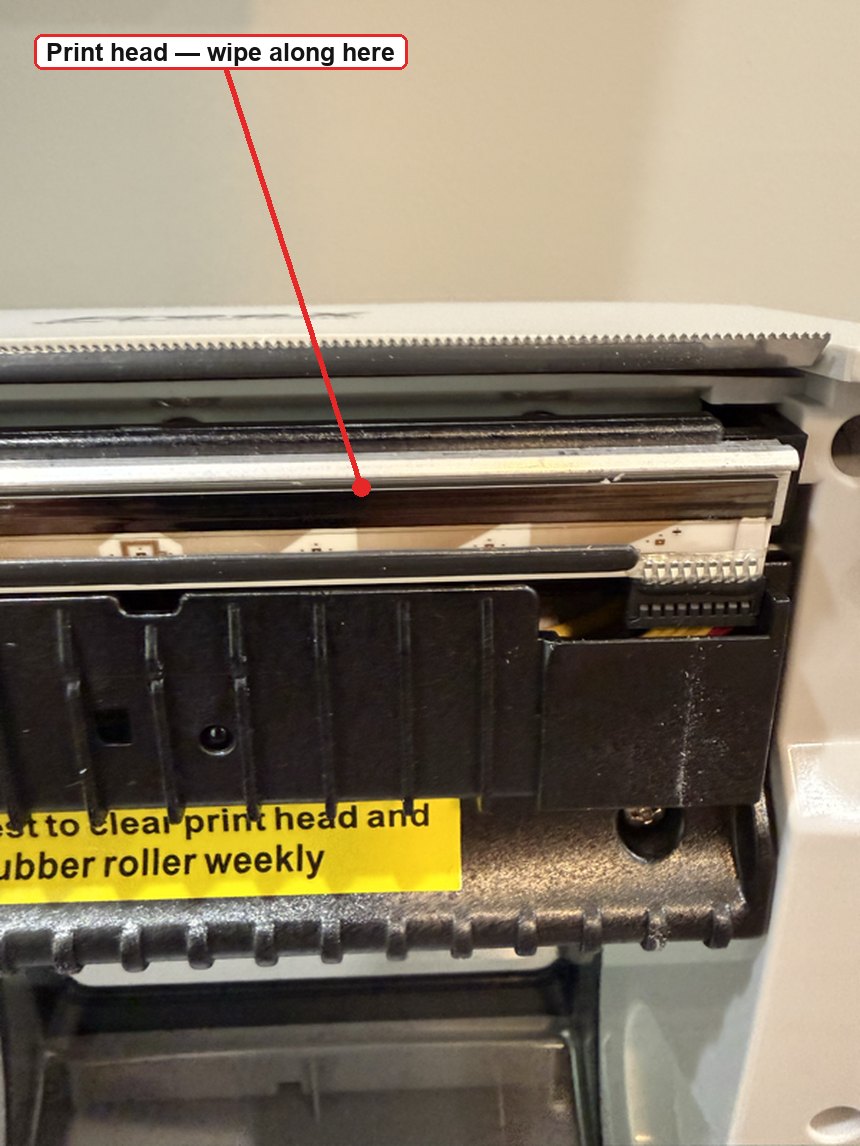
Wipe the silver strip, not the serrated bar above it. That saw-toothed edge is the tear-off blade — it needs no cleaning. The print head is the smooth metallic line just below it, where the label actually passes.
- Let it dry completely — at least a minute. Closing it wet can damage the head.
- Reload the roll, close the cover firmly on both sides, power on.
Never
- Never use a knife, fingernail, or anything metal to scrape it. The heating elements are microscopically thin and a single scratch causes a permanent white line.
- Never use water or household cleaners.
- Never touch the head with bare fingers — skin oils and static both harm it.
Clean the platen roller
The rubber roller beneath the label. Adhesive builds up here and causes smearing, patchiness and slipping.
- Printer off and unplugged, cover open, roll removed
- Dampen a lint-free cloth with isopropyl alcohol
- Wipe the roller while rotating it slowly with your finger, so you clean the whole circumference — not just the strip facing you
- Let it dry fully before reloading
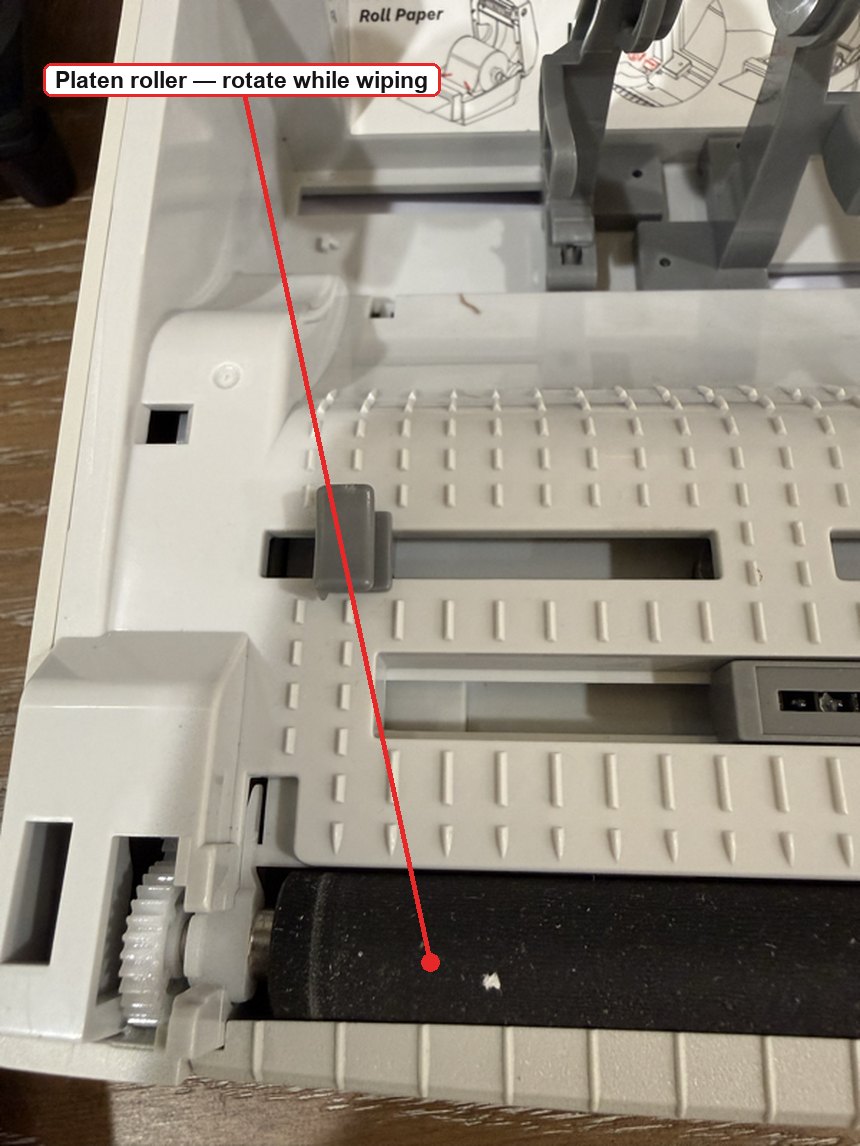
Only about a third of the roller faces you at a time. If you wipe without turning it, you leave two thirds dirty — and the smearing comes straight back on the next label.
If the roller is visibly shiny, grooved, or has flat spots, it is worn and needs replacing — cleaning will not bring it back.
Clean the gap sensor
A small sensor in the paper path that finds the gaps between labels. Dust or adhesive on it causes mis-positioned print or endless label feeding.
Give it a couple of short bursts of compressed air — can held upright, from a few inches away — or wipe very gently with a dry lint-free swab. Then recalibrate.
This is the part most worth blowing out regularly: it is small, recessed, and paper dust settles straight into it.
Darkness and speed
If the head and roller are clean and print is still too light or too dark, the settings are wrong — not the hardware.
The rule: slower printing and higher darkness give crisper output. Faster printing needs more darkness to keep up, and eventually blurs regardless.
For barcodes, prefer slower and darker. A barcode that won’t scan costs far more than a few seconds per label.
Using this project’s native filter:
lpoptions -p <QUEUE> -o freex-density=10 # 0-15, default 8. Higher = darker
Using the vendor driver, set Darkness and Print Speed in the print dialog’s printer options, or in the FreeX Toolbox.
If text is too light but solid blocks look fine, try raising the black/white cutoff instead — it makes thin strokes render more solidly:
lpoptions -p <QUEUE> -o freex-threshold=150 # default 128, higher = more black
Media: the boring cause of most problems
Thermal printers have no ink. The paper itself darkens under heat, so the labels are half the print system.
- Direct thermal only. These printers cannot use thermal-transfer labels (the kind needing a ribbon). Transfer labels come out blank.
- Right side up. Direct thermal labels are coated on one side only. If they feed through blank, the roll is in upside down — flip it.
- Cheap labels print worse. Thin or poorly coated stock gives grey, patchy output no amount of darkness fixes, and leaves more residue on the head, which then smears the next roll too.
- Scratch test: drag a fingernail firmly across a blank label. The coated side leaves a dark line from friction heat. That side faces the print head.
- Heat and sunlight fade labels. Store rolls somewhere cool and dark; don’t leave printed labels on a sunny windowsill.
Recalibrate the gap sensor
After cleaning, changing label size, or if print creeps down the label:
With the printer idle, hold the feed button until it advances a couple of labels and stops cleanly at a label edge. If it feeds continuously or stops mid-label, reseat the roll and repeat.
Some models calibrate by holding the button while powering on — check the FreeX documentation for yours.
A maintenance rhythm that works
| When | Do |
|---|---|
| Every roll change | Puff of air down the paper path, then wipe the head with alcohol |
| Monthly, or heavy use | Head and platen roller, plus blow out the sensor and paper path |
| Quality drops suddenly | Head first — it fixes it most of the time |
| After a paper jam | Head and roller; jams leave adhesive behind |
Two minutes per roll prevents almost every quality problem on this page. Print heads are consumable — they wear out — but a clean one lasts several times longer than a dirty one.
When it is genuinely broken
If a white line persists in exactly the same place after a thorough clean, that dot on the head has burnt out. Cleaning cannot fix it. The head is a replaceable part on most label printers; contact the manufacturer for a replacement, and weigh the cost against a new printer.
If print is uniformly faint across the whole label at maximum darkness on good media, the head is worn out and needs replacing.
Still wrong after all this?
If print quality is fine but the size or position is wrong, that’s software, not hardware — see labels printing at a different size every time.